PDF Reader, Editor & Scanner
Funsol Technologies FZE LLCProductivity
4.2372.00 Reviews
- Version
- 4.0.33
- Installs
- 10.00M
- Age Rating
- Everyone
Screenshots
Our Review of PDF Reader, Editor & Scanner
 Analysis by Appyee
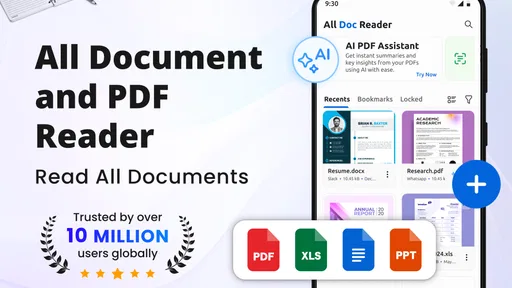
PDF Reader, Editor & Scanner is the kind of productivity app I reach for when a document arrives at the wrong moment: a form in an email, a page that needs scanning, or a PDF that needs a quick adjustment before I send it back. Developed by EAGLE APPS, it brings reading, editing, scanning, conversion, and document management into one Android app rather than making me jump between several utilities. That convenience is its main appeal, but it also means the experience depends heavily on how clearly I set up my files and how modestly I define “editing.”
I tested it with the mindset of an everyday phone user, not someone replacing a full desktop office suite. In that role, it feels useful and approachable. The app is free to start, carries an Everyone age rating, and supports devices running Android 8.0 or later. Its current version is 4.0.30, and its average rating sits at 4.1 from around 130 thousand ratings, with over 10 million installs. Those figures suggest that it has found a broad audience, although popularity does not remove the need to check whether its particular workflow suits you.
Where the first problems usually appear
The first point of friction is often not the PDF itself but the way it is stored. On a phone, a document may be in a download folder, attached to a message, saved by a cloud service, or hidden inside another app’s file picker. If I open PDF Reader expecting every file to appear immediately in one neat list, I can mistake a file-location problem for an app problem. My best starting habit is to identify where the document was saved before opening the reader.
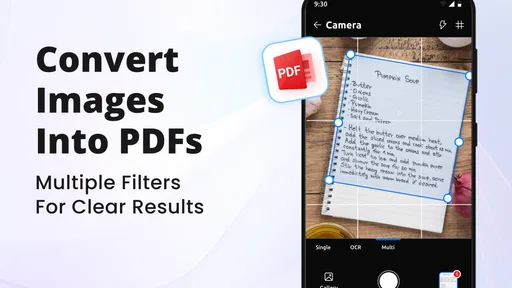
That small check matters even more when I am scanning paper. A scan begins with the physical page, lighting, camera position, and surface underneath it. If the page is curled, shadowed, or partly outside the frame, no later editing step will make the result genuinely clean. I get better results by placing the paper on a contrasting flat surface, holding the phone parallel to it, and checking the full page before saving. This is a simple technique, but it prevents a surprisingly common cycle of rescanning and renaming files.
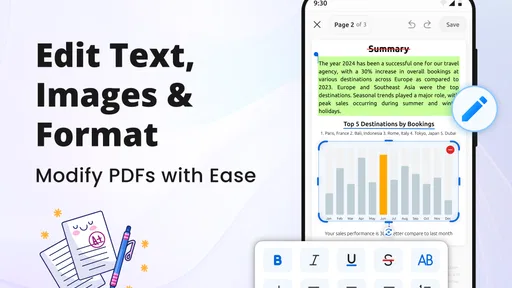
Another source of confusion is the difference between reading a PDF and changing its underlying content. A reader can display a document perfectly while an edit produces a result that looks different from what I expected. Text may be part of a scanned image rather than selectable characters, and a page may contain fixed formatting that does not behave like a word-processing document. I therefore treat quick edits as practical document adjustments, not as a promise that every PDF can be rebuilt like an original office file.
The most useful mindset is to decide whether I am handling pages, text, or images before choosing an action. Page-level work usually means reading, rearranging, converting, or managing a document. Text-level work depends on how the PDF was created. Image-based scans need a different approach from digitally generated documents, even though both appear as PDF files on the screen.
What to check before blaming the app
If a file refuses to open, I first test whether another copy of the same document works. A damaged download, incomplete attachment, or unusually complicated file can create symptoms that look like an application failure. I also check the filename and location, then close and reopen the app before trying the operation again. These are ordinary steps, but they are more useful than repeatedly tapping the same command.
For a scan that looks poor, I inspect the original page and the camera conditions before changing settings. Reflections from glossy paper can wash out writing; warm indoor light can make a white page look yellow; and a tightly cropped edge can remove important marks. Moving the phone slightly, improving the light, and leaving a small margin around the page often solves more than an aggressive edit.
It is also worth remembering that free access does not necessarily mean every advanced action has the same conditions. PDF Reader is free, while in-app purchases range from $4.99 to $109.99 per item. I would not begin a time-sensitive document task assuming that every conversion or editing option will behave identically without any purchase prompt. When a feature appears restricted, I check the screen carefully rather than repeatedly retrying it or assuming the document is broken.
A calmer setup for everyday documents
My preferred setup is deliberately boring. I create a clear place for incoming PDFs, open one sample document first, and confirm that I can read it before importing a large batch. For scans, I save a test page and inspect it at normal reading size. This catches problems with orientation, cropping, or legibility early, when fixing them is easy.
I also avoid giving a document an ambiguous name. A scan called “document” is difficult to identify later, especially when several versions exist. A short name that includes the subject and date makes the app’s document-management role much more valuable. This is not a flashy feature, but it changes how quickly I can find a file when I am standing in a queue or replying to a message.
When I receive a PDF through another app, I use the phone’s sharing or opening options to send it into PDF Reader rather than searching blindly through folders. If the file opens in a browser preview instead, I save it first and then import the saved copy. That two-step route is often more reliable than trying to edit a temporary preview that was never stored as a normal local document.
For people wondering whether this app works on an older phone, the stated minimum is Android 8.0, so compatibility begins there. Actual comfort still depends on the document and the device. A short text PDF is a very different task from a large scan with many image-heavy pages. I would keep some free storage available and close unrelated apps when working with a demanding file, especially on an older handset.
Recovering a workflow when something goes wrong
The safest recovery method is to preserve the original. Before converting, editing, or making a major change, I keep an untouched copy with a clear name. If the result is unexpectedly cropped, flattened, or difficult to read, I can return to the source instead of trying to reverse several actions. This is particularly important for forms and receipts, where a small missing edge can matter.
When a document looks wrong after conversion, I compare it page by page with the original. I look for missing symbols, shifted spacing, rotated pages, and text that has become part of an image. A conversion can be technically successful while still needing a visual check. I would never send an important form immediately after conversion without opening the final file and checking every page.
Scanning benefits from a similar recovery plan. If the first attempt is blurred, I do not keep editing the blurry copy. I rescan the page with steadier positioning and better light, then compare the two versions. If only one corner is missing, a new scan is usually cleaner than trying to disguise the omission through cropping. This is one of the practical strengths of having scanning and document handling together: I can repeat the capture without leaving the same general workspace.
For a file that will not open, I try a smaller diagnostic step. I open a different PDF, then return to the troublesome one. If the second file works, I focus on the original’s download, structure, or storage location. If several files fail in the same way, I restart the app and the phone, confirm that the device meets the Android requirement, and try importing a freshly saved copy. I avoid deleting the only copy during troubleshooting.
There is also a useful distinction between a display issue and a saved-file issue. If the page looks strange only while previewing but appears correct after reopening the saved copy, the problem may have been temporary rendering. If the saved copy remains wrong, I treat the operation as unsuccessful and return to the original. That habit keeps a confusing screen refresh from turning into a lost document.
Small habits that make the app more dependable
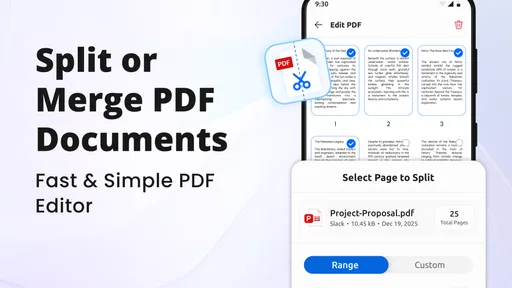
One of my favorite practical habits is to review orientation before combining document pages or sending a scan. A single sideways page can make an otherwise professional file awkward to use. I rotate or recapture it before the final save, then reopen the complete document from the beginning rather than checking only the last page.
I also separate “working copies” from “final copies.” A working copy is where I test a conversion or quick edit. The final copy receives a name that makes its status obvious. This is especially helpful when I use the app for school paperwork, travel documents, invoices, or signed forms and need to know which version is ready to share.
Another non-obvious trade-off is convenience versus concentration. Having reading, scanning, editing, and conversion together saves time, but it can encourage me to process a document too quickly. I am more likely to tap the next available action without first deciding whether I need a clean scan, a smaller shareable file, or an editable result. The app is most effective when I choose the intended outcome first and use only the necessary step.
For occasional personal paperwork, that integrated approach is excellent. For a long report that needs extensive layout changes, repeated tracked revisions, or precise desktop-style formatting, I would move to a dedicated computer tool. PDF Reader is better as a mobile document station than as a complete replacement for every specialist application.
When the app is not the cause
Some failures originate outside the reader. A sender may have uploaded the wrong attachment, a messaging app may still be downloading the file, or a cloud service may provide only a preview rather than the original. In those cases, reinstalling or repeatedly reopening PDF Reader will not repair the source. I first obtain a fresh copy and confirm that it has finished downloading.
Camera-related problems are similarly easy to misdiagnose. If every scan has a dark strip on one side, I inspect the phone position and surrounding light before concluding that the scanner is malfunctioning. If only one paper produces poor results, the page itself may be glossy, faint, folded, or too close to the background color. A quick test with an ordinary printed page helps separate the document’s condition from the app’s behavior.
Storage can affect the whole workflow too. A phone that is nearly full may struggle to save new scans or converted copies, and the visible symptom may simply be that an operation appears not to finish. I check available space, close the source file, and try saving a small test document. I also avoid creating many duplicate exports while experimenting, since those copies can quietly consume the room needed for the final version.
Network conditions matter when the document begins outside the app. If an attachment or cloud file is incomplete, I wait for the source app to finish syncing or download it again before importing. Once I have a stable local copy, I can judge PDF Reader fairly. This separation between acquisition and document processing saves time and makes troubleshooting much less frustrating.
Privacy is another reason to think about the workflow rather than simply tapping through it. I use extra care with identity documents, financial paperwork, and forms containing personal information. I keep only the copies I need, give them clear names, and avoid sending a test export to the wrong conversation. The app’s convenience makes handling sensitive material faster, but it also makes deliberate file management more important.
Who should use it and who should choose something else
I would recommend PDF Reader to someone who wants one Android tool for opening PDFs, making practical document changes, scanning paper, converting files, and keeping everyday paperwork organized. Students can use it for handouts and forms; freelancers can use it for receipts and client documents; families can use it for school notices and household records. Its Everyone rating also makes it broadly approachable for general home use.
I would be more cautious if your main requirement is advanced document production. If you need exact typography, complex tables, extensive annotation systems, or a highly controlled team review process, a desktop office suite or a specialist PDF editor will usually be a better fit. The phone is convenient for urgent work, but its smaller screen makes detailed inspection slower and increases the chance of overlooking a subtle layout problem.
Compared with using the phone’s basic file viewer, this app offers a more complete document workflow. Compared with separate scanner, converter, reader, and editor apps, it reduces app switching and keeps the task in one place. The trade-off is that a general-purpose package may not match a dedicated tool in every specialist area. I see that as a sensible compromise for mobile productivity, provided I verify important results before sharing them.
The app has a substantial audience, with a 4.1 average and more than 10 million installs, but I would not choose it solely because of those figures. I would choose it because my work involves short, practical document tasks and I value having them together. The free entry point makes it easy to test that fit, while the in-app purchase range means I pay attention to which actions are part of my regular routine before committing to anything beyond basic use.
My practical verdict after using it
PDF Reader, Editor & Scanner is a useful mobile productivity companion when the goal is to get paperwork under control quickly. I like it most for the middle ground between a basic viewer and a full desktop editor: opening a file, scanning a page, making a sensible adjustment, converting a document, and preparing a clean copy to send. Its strongest quality is workflow convenience, not unlimited editing power.
The key to a good experience is preparation. Know where the source file is, keep an untouched copy, check the scan before saving, and reopen the final document before sending it. If something fails, test another file and inspect the download, storage, camera conditions, or source app instead of assuming the reader is responsible. Those habits make the difference between a quick solution and a frustrating chain of retries.
For my everyday phone-based paperwork, I would keep it installed. It is free to begin, supports a wide range of Android devices from Android 8.0 onward, and brings several useful document tasks into one place. I would skip it only if my work demands highly specialized PDF production or if I prefer separate tools with deeper control. For everyone else who wants a practical document utility without carrying a laptop for every small task, PDF Reader, Editor & Scanner is worth trying carefully with a few non-critical files first.
Verdict
Strengths of PDF Reader, Editor & Scanner
- Opens PDFs quickly, even when switching between several documents.
- Supports text search, making long files easier to navigate.
- Scanner produces clear digital copies from printed pages.
- Document tools are organized in a simple, beginner-friendly interface.
- Useful for signing, annotating, and sharing files from one place.
Limitations of PDF Reader, Editor & Scanner
- Advanced editing features may require a paid subscription.
- Large scanned documents can take noticeable storage space.
- OCR accuracy may drop with handwriting or poor lighting.
- Some features depend on an active internet connection.
- Frequent prompts to upgrade can interrupt the free experience.
Similar Picks in This Category
View All
Google Calendar
Google LLC4.6

Google Drive
Google LLC4.3

Google Assistant
Google LLC3.9

Microsoft OneDrive
Microsoft Corporation4.6

Samsung Calendar
Samsung Electronics Co., Ltd.4.1

Microsoft OneNote: Save Notes
Microsoft Corporation4.6
Frequently Asked Questions
What can PDF Reader, Editor & Scanner do?
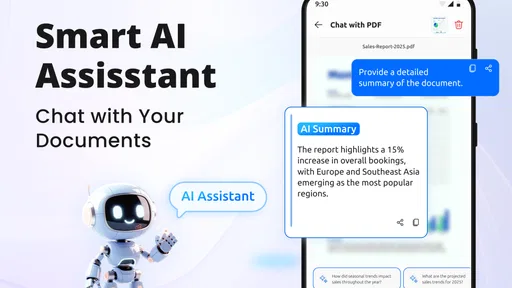
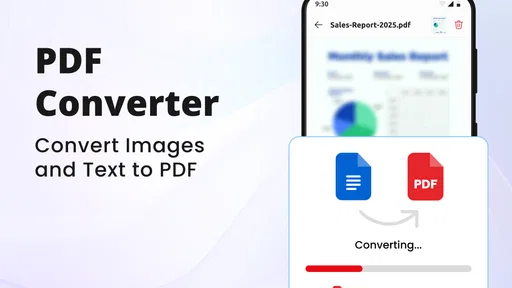
PDF Reader, Editor & Scanner is designed as an all-in-one tool for opening, reading, organizing, editing, scanning, and sharing PDF documents. You can usually view files stored on your device or cloud services, search through text, add annotations, fill forms, sign documents, and convert paper pages into digital PDFs using the camera. Available features may vary depending on your device, app version, and subscription plan.
Can I edit PDF files and add signatures with this app?
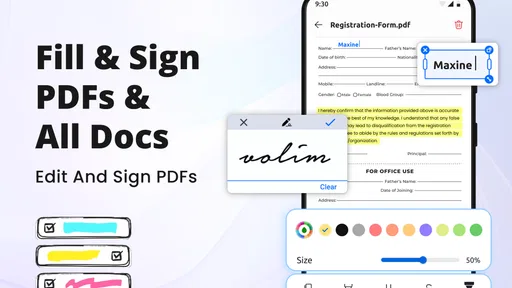
Yes, the app generally provides practical editing and annotation tools rather than functioning like a full desktop publishing program. Depending on the version, you may be able to highlight text, draw on pages, add comments, insert text, complete forms, and place an electronic signature. It is a good choice for everyday document corrections, although advanced layout editing may require a premium plan or another specialized PDF editor.
Does the scanner create clear and searchable PDF documents?
The scanner uses your device camera to capture receipts, contracts, notes, and other paper documents, then combines the images into a PDF. Automatic edge detection, cropping, perspective correction, and image enhancement can improve readability. If optical character recognition is supported in your version, scanned text may also become searchable or editable, but results depend on lighting, focus, handwriting, and print quality.
Is PDF Reader, Editor & Scanner free to use?
The application can typically be downloaded for free, but some tools may be restricted behind in-app purchases or a subscription. Basic reading and simple document management are often available without payment, while features such as OCR, unlimited scanning, advanced editing, cloud synchronization, or ad removal may require a premium upgrade. Review the pricing screen carefully before starting any trial to understand renewal terms.
Are my documents safe when I use the app?
Document privacy is an important consideration because PDF files can contain personal, financial, or business information. Before scanning or uploading sensitive material, check the app’s privacy policy, permissions, storage behavior, and cloud-processing practices. Use a trusted download source, enable device security, and avoid sharing files through unknown services. If the app offers passcode protection or local-only storage, those options can provide additional control.
